

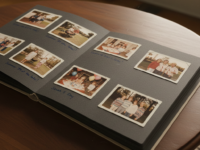


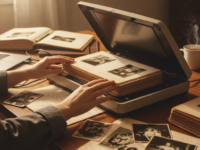










Old photo albums are more than paper and ink—they are silent storytellers of family history, childhood moments, weddings, travels, and generations that came before us. Unfortunately, physical photos fade, tear, and can be lost forever due to moisture, fire, or simple aging. Scanning old photo albums is the most reliable way to preserve these memories for the future.
This step-by-step guide will walk you through how to scan old photo albums properly, avoid common mistakes, and store your digital copies safely.
Why You Should Scan Old Photo Albums
Before starting, it’s important to understand why digitizing photo albums matters:
-
 Prevents loss due to aging, mold, or damage
 -
 Preserves memories for future generations
 -
 Allows easy sharing with family members
 -
 Makes photos searchable and organized
 -
 Enables reprinting and restoration
According to archival experts, physical photographs can degrade significantly within decades if not stored properly (Source: Library of Congress).
 https://www.loc.gov/preservation/care/photographs.html
Step 1: Prepare Your Photo Albums
Clean the workspace
Choose a clean, dry, dust-free area with good lighting. Avoid food, drinks, or direct sunlight.
Handle photos carefully
-
Wash and dry your hands
-
Avoid gloves unless photos are very delicate
-
Never peel photos forcefully from albums
If photos are stuck, do not pull them out—scan them in place.
Step 2: Choose the Right Scanner
The scanner you use makes a huge difference in quality.
Recommended scanner types:
-
Flatbed scanners – Best for albums and loose photos
-
Photo scanners – Faster, but not ideal for bound albums
-
All-in-one printers – Acceptable for casual use
Popular flatbed scanners:
-
Epson Perfection Series
-
Canon CanoScan Series
Consumer Reports provides reliable scanner comparisons: https://www.consumerreports.org/electronics-computers/scanners/
Step 3: Set the Correct Scan Settings
Recommended scan settings:
-
Resolution:
-
300 DPI (standard archiving)
-
600 DPI (small or detailed photos)
-
-
Color mode: RGB (even for black & white photos)
-
File format:
-
TIFF (best quality, large size)
-
JPEG (good balance, smaller size)
-
Avoid scanning at extremely high DPI unless necessary—it increases file size without visible benefits.
Step 4: Scan Photos Directly From Albums (If Needed)
If photos are glued or mounted:
-
Place the album flat on the scanner
-
Gently press the lid (do not force it)
-
Scan one page at a time
-
Crop individual photos later using software
This method protects fragile albums from damage.
Step 5: Edit and Enhance Carefully
After scanning, basic editing improves clarity while keeping authenticity.
Simple enhancements:
-
Crop borders
-
Adjust brightness and contrast
-
Remove dust or scratches gently
Recommended free tools:
-
GIMP – https://www.gimp.org
-
Google Photos – https://photos.google.com
For restoration guidance, the National Archives offers helpful digitization tips: https://www.archives.gov/preservation/digital-preservation
 Avoid over-editing—old photos should still look old.
Step 6: Organize Your Digital Photo Library
A good structure saves time later.
Folder example:
Family_Photos/ ├── 1980s/ │ ├── Weddings/ │ └── Holidays/ ├── 1990s/ └── Parents_Album/
File naming tip:
1994_family_picnic_dhaka.jpg
Consistent naming improves searchability and memory recall.
Step 7: Back Up Your Scanned Photos
Never rely on a single copy.
Best backup strategy:
-
 Local hard drive
 -
Cloud storage
-
 External drive stored separately
Popular cloud options:
-
Google Drive – https://www.google.com/drive/
-
Dropbox – https://www.dropbox.com/
-
OneDrive – https://www.microsoft.com/onedrive
Experts recommend 3 copies in 2 locations, with at least 1 off-site backup.
Step 8: Preserve the Original Albums
Even after scanning:
-
Store albums in acid-free boxes
-
Keep them in cool, dry environments
-
Avoid plastic sleeves not made for archival use
Archival storage guidelines: https://www.archivalmethods.com/blog/
Common Mistakes to Avoid
 Scanning at very low resolution Using phone cameras for important albums Forgetting backups Over-compressing JPEG files Ignoring metadata and organization
Final Thoughts
Scanning old photo albums is not just a technical task—it’s an emotional journey through time. With patience and the right approach, you can protect irreplaceable memories and ensure they survive for generations.
Whether you scan one album a week or an entire family archive, starting today is better than waiting.


0 Comments